Device is Out of Storage Space
If you see a notification bar across the top of your Mylio photo library that says the Disk Storage is Full, there are a few things you can do to fix it.
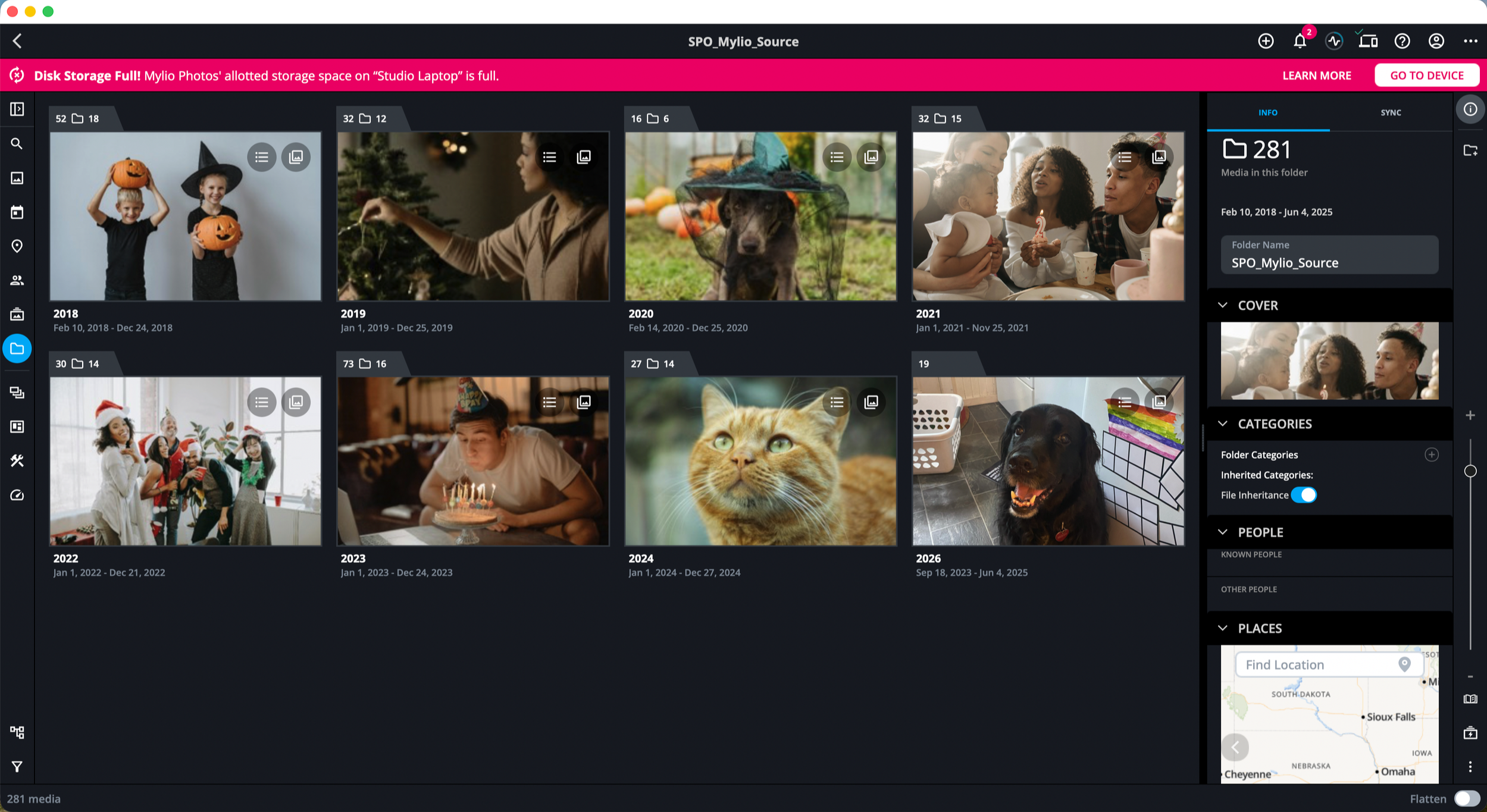
Solution 1: Adjust Device Storage
Mylio allows you to control how much storage space is available on each of your devices at any given time. If, for example, this is set to 20GB, and Mylio sees that your device only has 20GB of storage left on it, Mylio will stop syncing, and you will get the notification above.
By default, this setting is set to be auto-managed by Mylio. If you run out of space, you can lower the required storage space by doing the following.
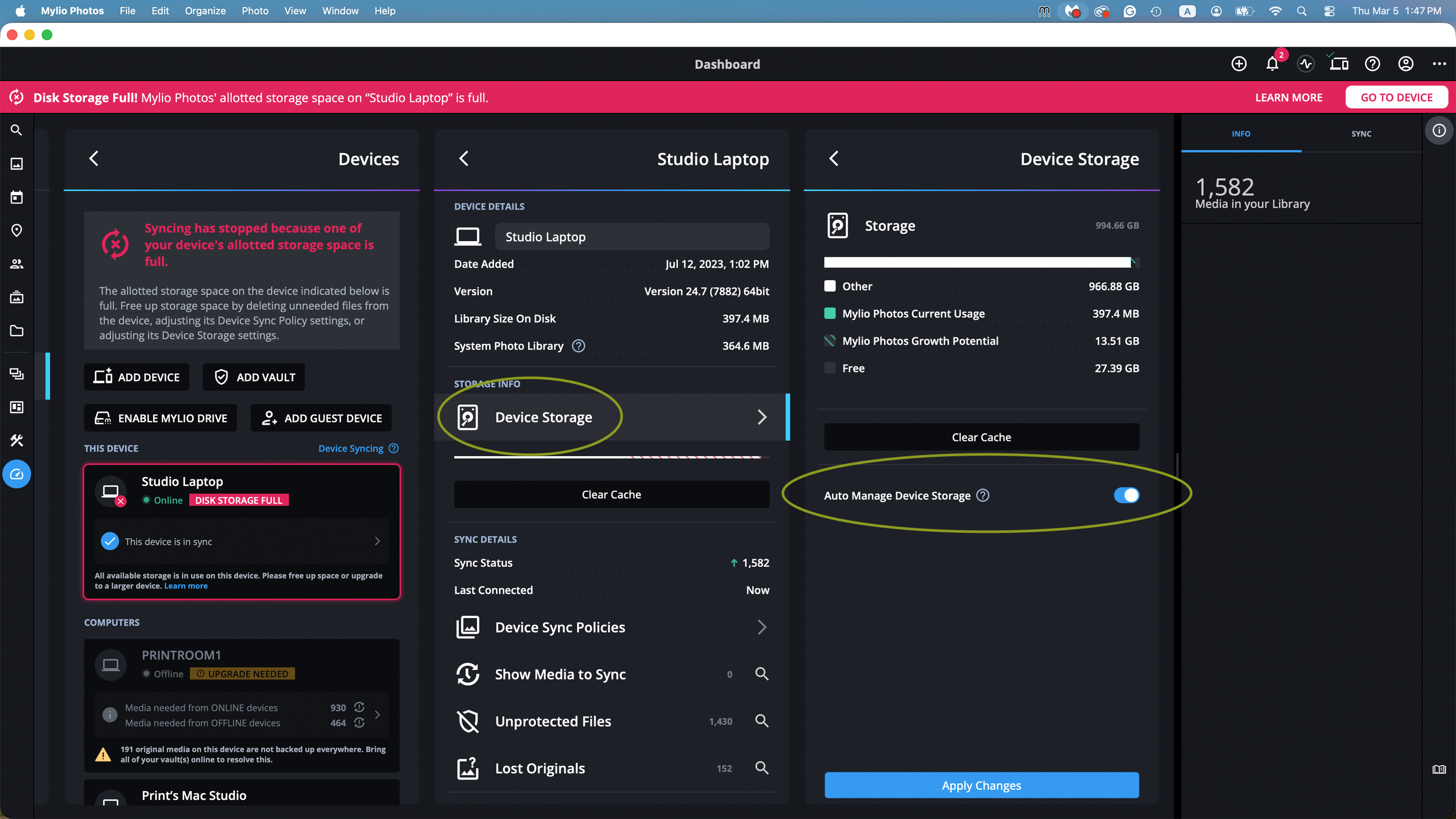
1.) Navigate to the Devices panel by selecting the computer icon in the upper right hand corner
2.) Click on the device that is out of storage space
3.) Select “Device Storage” from the menu. You will then see the “Auto Manage Device Storage” option
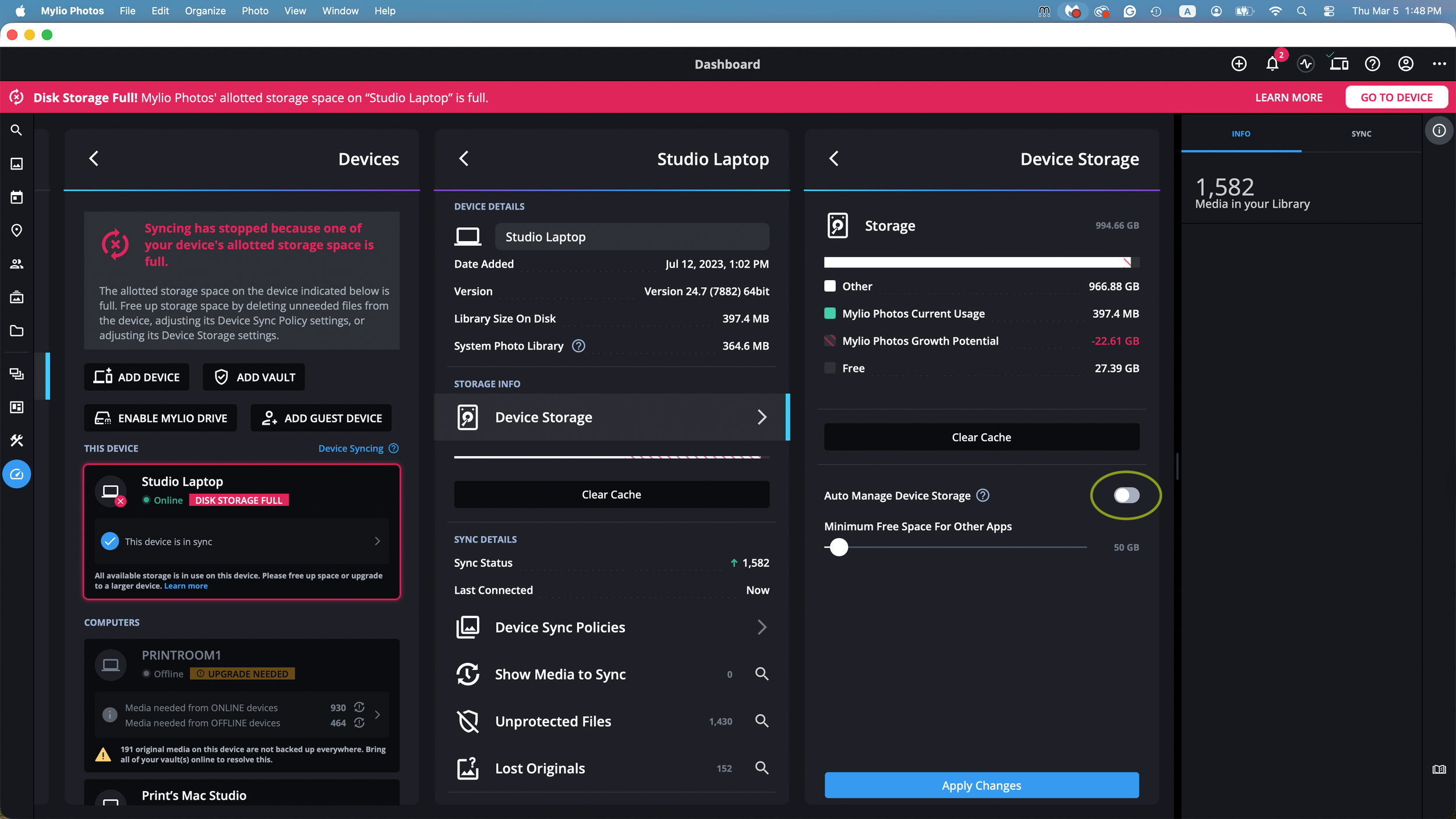
4.) Turn the “Auto Manage Device Storage” Off. You will then see a slider bar appear.
5.) Move the slider bar down to your desired number and hit “Apply Changes”
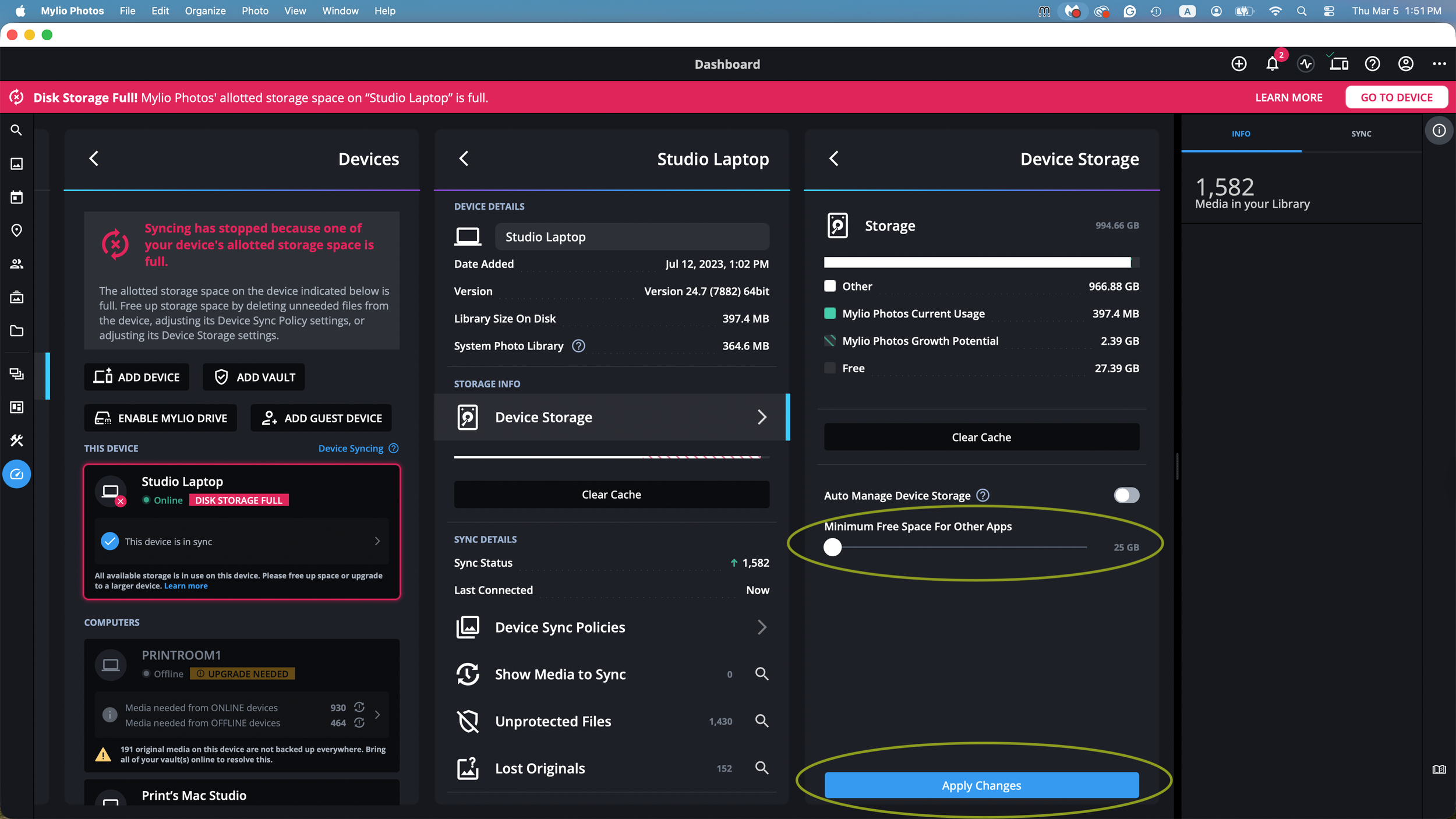
6.) The notification should disappear after a few seconds. If it does not disappear after a minute or two, you may need to lower the slider bar even more.
Solution 2: Clear the Cache
Mylio uses the Cache as a temporary holding area when sync settings are adjusted. For example, if you temporarily download an original or optimized version of an image to your device in Mylio, it will be added to your cache.
1.) Navigate to the Devices panel by selecting the computer icon in the upper right hand corner
2.) Click on the device that is out of storage space
3.) Select “Clear Cache:
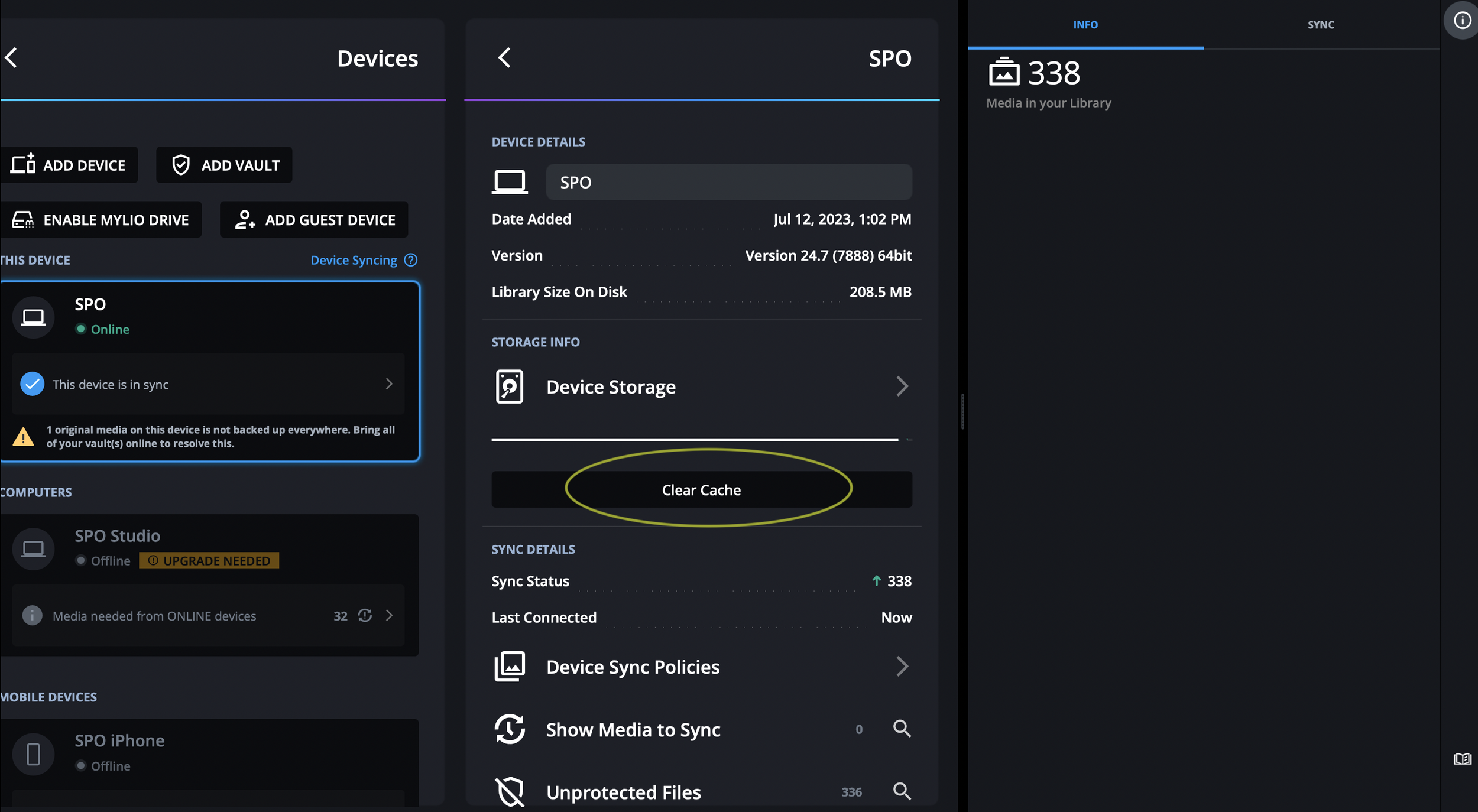
4.) A box will appear with the total number of optimized and original quality images that can be safely removed from that device. You can check the box for one or both, then select Remove.