Device Sync Policies
One fantastic feature in Mylio is its ability to let you set device sync policies on a device-by-device basis.
So what does this mean?
The way that Mylio works is that it will store a version of your images on every device that is connected to your Mylio account. Every device, this means phones, hard drives, tablets, computers, etc.
Depending on the device, these versions are stored in different locations. On your phone or tablet, you will not be able to access these versions outside of the Mylio app. They live in the back end of the app on your phone.
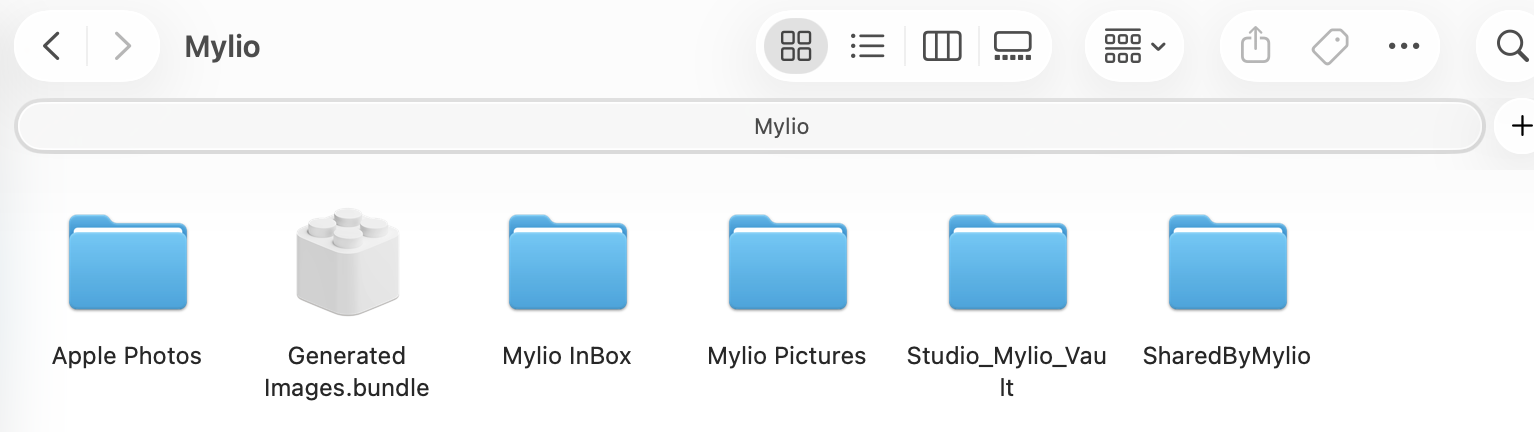
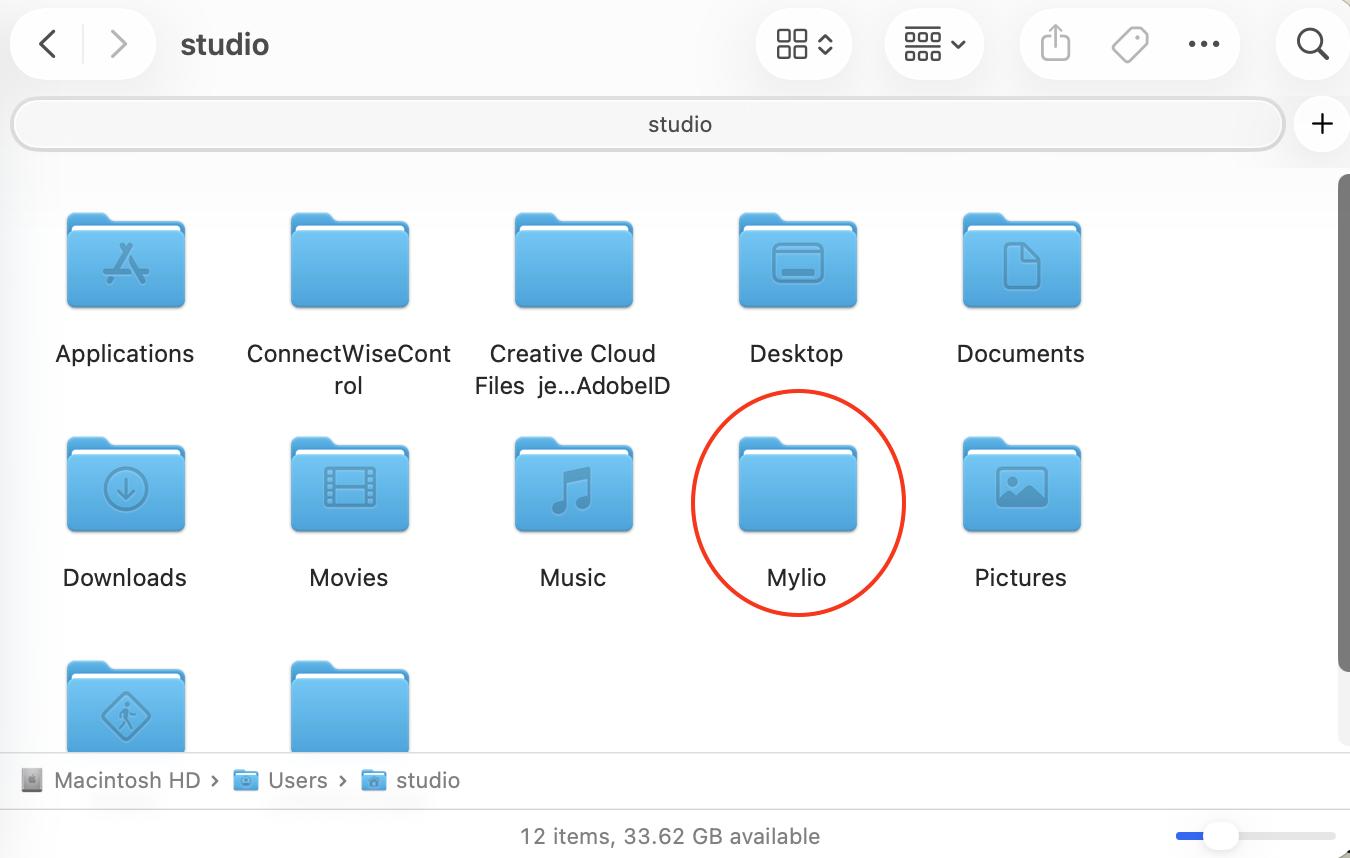
On a computer, if you poke around enough, you may find a Mylio folder. In this folder will be a generated images bundle file and/or subfolders that match your folder system in Mylio. Those subfolders may have images on them, .xmp files, or be empty depending on the device sync policy you have set for that computer. We recommend you leave this folder alone–there are no real reasons to go poking around in it. If you want to view and access your images, do so inside the Mylio app. It is important you do NOT delete this folder as it is what connects your computer to your Mylio account.
On an external hard drive, you will see a folder called Mylio_[numbers & letters]. Do NOT delete this folder. Inside of it you will see a folder system that looks like the folder system you have in Mylio. Once again, it is best to work with your photos in Mylio and NOT on the external hard drive.
So, what are device sync policies?
As we know, Mylio stores a version of your images on every device connected to your Mylio account. Device sync policies let you control the SIZE of the versions stored on each device. If you have a large photo library, you do not want to store the original/full resolution versions of those photos on your devices–they will fill up your device’s storage in no time! So instead, you can tell Mylio to store smaller versions on your device that will take up less storage space.
There are a number of device sync policies to choose from, but there are only three you really need to know about.
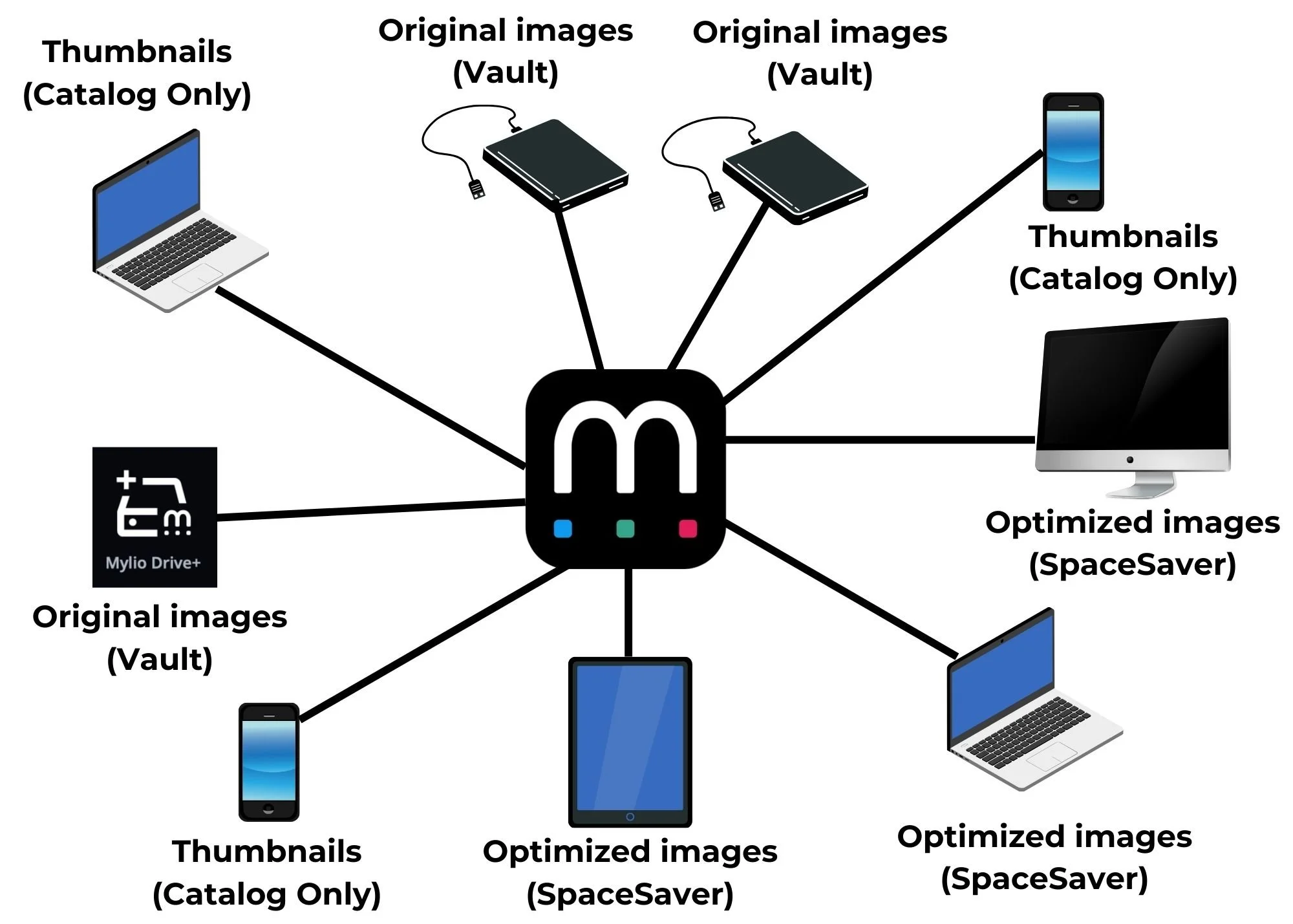
Catalog Only: This stores thumbnail versions of your images on your device. This will use the least amount of storage space on your device. It is important to note, that if you do not simultaneously have a device with a larger version connected to Mylio at the same time, then the images on the device set as Catalog Only will appear a little blurry because they are such a low resolution. You will also not be able to view videos without setting up specific image policies in the Device Sync Policies menu. This is a great reason to sign up for Mylio Drive+ (Mylio’s cloud-like service) as it allows you to have access to high-resolution versions anytime you have a wifi connection.
SpaceSaver: This stores optimized versions of your images on your device. These versions are big enough to edit and view without blur, but not as large as the full-resolution versions. It takes up a medium amount of storage space. This is a great option for a device that has a little more storage space. All devices added to your Mylio account will default to the SpaceSaver device sync policy.
Vault: This stores the original, full-resolution versions of your images on your device. It will take up the most amount of storage space. This is how your photo library gets backed up and protected. The Vault setting is great for external hard drives and is the default setting for Mylio Drive+. It is recommended that you always have at least 2 vaults fully synced with your Mylio photo library to protect against data loss and ensure your images are backed up.
Below is an example of how you may have your devices set up with device sync policies